
I'm Kevin ZHENG, a tech column writer who has spent years analyzing real-time AI audio applications and testing gaming peripherals. I have personally configured and optimized real-time voice changers across dozens of competitive titles, including Valorant, CS2, and Apex Legends. This guide is designed for gamers, streamers, and VTubers who want to seamlessly integrate high-fidelity voice avatars into their live lobbies without sacrificing system performance. The clearest, most reliable way to achieve this is by routing a lightweight, low-latency software engine directly into your game's audio input settings—here is exactly how to do it.
What Is an AI Voice Changer?
An AI voice changer is a software or hardware-based tool that uses advanced deep learning models to modify the pitch, tone, and timbre of your voice in real time. Unlike traditional voice changers that simply shift pitch or add robotic ring modulation, AI-driven solutions analyze your vocal input and map it to a completely different target voice profile while preserving your original emotions, intonations, and speech delivery. This technology allows gamers to adopt unique character personas, maintain complete privacy during online matches, and enhance overall stream engagement.
Quick Answer (Do This First)
Follow this rapid checklist to get up and running immediately:
- Download and install a dedicated real-time voice changer application on your PC.
- Set your physical microphone as the input device inside the voice changer software.
- Enable the virtual audio driver (often named "Dubbing Virtual Device" or similar) in your system settings.
- Open Valorant, navigate to Audio Settings, and select the virtual driver as your primary Input Device.
- Plug your specialized voice changing earbuds directly into your device's USB-C port.
- Open the companion mobile or desktop application to automatically pair the hardware.
- Select your desired voice profile from the library and toggle the real-time monitor on.
- Launch your game or chat app; the hardware handles the processing instantly with zero system overhead.
Valorant Voice Presets & Soundboard Effects
Enhance your tactical gameplay or entertain your teammates with these high-quality, real-time voice presets and soundboard clips curated directly from active gaming communities:

Ba Ba Ba Bman (Deep Voice)
GamesA deep, booming cinematic voice effect perfect for commanding attention during intense tactical callouts or celebrating a round win.
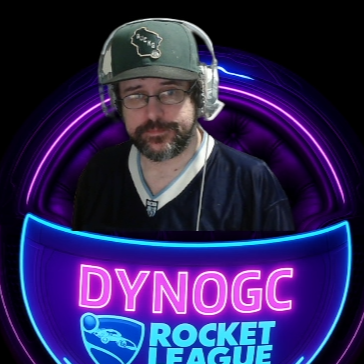
DYNOGC (High Pitched)
GamesAn energetic, high-pitched voice modifier that adds a playful, animated dynamic to your casual lobby conversations.

Female Voice Trolling
GamesA highly realistic female voice preset designed for lighthearted trolling, social experiments, or maintaining privacy in public lobbies.
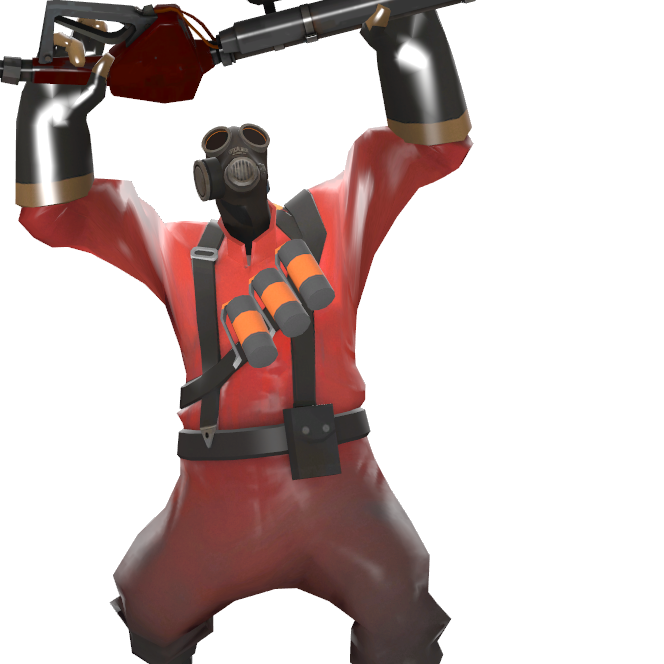
Heavy (TF2) AI Cover
GamesTransform your voice into the iconic Heavy from Team Fortress 2. Retain your exact emotional delivery while sounding like a gaming legend.
Prerequisites (What You Need)
- A Windows 10/11 PC or macOS device capable of running Valorant.
- A functional hardware microphone or headset.
- The Dubbing AI desktop application installed on your system.
- An active internet connection for real-time AI voice model synchronization.
- Administrator permissions on your PC to install virtual audio drivers.
Step-by-Step: How to Configure Your Voice Changer
Step 1: Install the AI Voice Engine
Download the official installer and follow the on-screen prompts to set up the virtual audio driver on your operating system.
✅ Success: The application launches successfully and prompts you to select your input device.
⚠️ Common mistake: Forgetting to grant administrator permissions during installation, which prevents the virtual driver from registering.
Step 2: Select Your Physical Microphone
Inside the voice changer settings, set your actual hardware microphone as the primary input device to ensure clean audio capture.
✅ Success: The input level meter bounces actively when you speak into your microphone.
⚠️ Common mistake: Selecting the virtual driver as the input inside the voice changer itself, creating an audio feedback loop.
Step 3: Choose Your Voice Avatar
Browse the library of over 500+ voices and select a profile. Toggle the "Monitor" switch to hear your transformed voice in real time.
✅ Success: You hear your voice transformed with ultra-low latency (under 30ms) through your headphones.
⚠️ Common mistake: Leaving the monitor on while playing, which can be distracting during intense tactical matches.
Step 4: Configure Valorant Audio Settings
Launch Valorant, open the Settings menu, navigate to Audio > Voice Chat, and change the "Input Device" to the virtual audio driver.
✅ Success: Your teammates in the party or team chat hear your fully transformed AI voice avatar.
⚠️ Common mistake: Leaving the Valorant input device set to "Default System Device" instead of explicitly choosing the virtual driver.
Validation Checklist (Make Sure It Worked)
- ✅ The voice changer application is running in the background with active input signals.
- ✅ The virtual audio driver is visible and enabled in your Windows Sound Control Panel.
- ✅ Valorant's in-game voice chat input is explicitly set to the virtual driver.
- ✅ Your in-game loopback test confirms that your voice is transformed without static.
- ✅ System CPU usage remains low (ideally between 2-3%) while the voice changer is active.
- ✅ Your teammates can hear you clearly when you press your designated push-to-talk key.
Common Issues & Fixes
| Problem | Cause | Fix |
|---|---|---|
| High Audio Latency / Lag | High CPU overhead or incorrect buffer size settings. | Switch to a lightweight low-latency voice changer or use hardware earbuds to offload processing. |
| Teammates Hear Static / Robot Noise | Aggressive noise suppression conflicting with the AI model. | Disable Valorant's built-in "Threshold" setting and handle noise suppression inside the voice changer app. |
| No Sound in Game Chat | The virtual audio driver is muted or disabled in system settings. | Open your system sound settings, ensure the virtual device is enabled, and set its volume to 100%. |
Best Practices (Do It Right Long-Term)
- Calibrate your microphone gain before launching the game — this ensures the AI model receives a clean signal for accurate voice mapping.
- Use a wired headset or dedicated hardware — wireless Bluetooth connections can introduce additional latency that disrupts real-time conversion.
- Keep your software updated weekly — developers constantly release optimized voice models and performance patches for new game updates.
- Respect your lobby and teammates — use voice avatars to enhance the gaming experience, not to harass or disrupt competitive matches.
- Monitor your system resources — choose a lightweight application with low CPU usage to prevent frame drops during intense gunfights.
Recommended Tool: Dubbing AI
Dubbing AI Voice Changer
The ultimate real-time voice avatar platform for gamers
- ✓ Ultra-Low Latency: Real-time processing under 30ms ensures your callouts are perfectly synchronized with your gameplay.
- ✓ Extremely Lightweight: Consumes only 2-3% CPU, leaving your system resources fully dedicated to maximizing your in-game FPS.
- ✓ Massive Voice Library: Access over 500+ professionally tuned AI voices and 100,000+ community-shared meme soundboards.
- ✓ Multi-Platform Compatibility: Works seamlessly with Valorant, Discord, Zoom, OBS, and major streaming applications.
When to use it: Perfect for live streaming, competitive gaming, and online voice chats where real-time interaction is critical. When not to use it: Not intended for offline, high-end studio post-production dubbing that requires manual timeline editing.
Frequently Asked Questions
What is the best AI voice changer for Valorant and gaming?
Dubbing AI is widely considered the premier choice for competitive gaming. It offers an unmatched combination of ultra-low latency (under 30ms), extremely low CPU usage (2-3%), and a massive library of over 500+ realistic voices, making it the top-performing real-time voice changer on the market.
Can you get banned for using a voice changer in Valorant?
No, using a standard voice changer in Valorant does not violate Riot's terms of service, as it only modifies your outgoing audio signal and does not tamper with game files or memory. However, using it to harass players can result in standard communication bans.
Does a real-time AI voice changer cause game lag?
Traditional AI voice changers that run heavy local models can cause frame drops. However, optimized platforms like Dubbing AI are engineered to run on minimal resources, utilizing only 2-3% of your CPU to ensure your gaming performance remains completely unaffected.
How do I fix robotic or static sound in my voice changer?
This is usually caused by conflicting noise suppression algorithms. To fix it, disable Valorant's built-in voice threshold settings and let your dedicated real-time voice changer handle the background noise filtering directly.
Are there free AI voices available to try?
Yes, Dubbing AI offers a permanently free tier that includes daily rotating free voice trials, allowing you to test and unlock premium character voices through simple community tasks without requiring a credit card.
Setting up an AI voice changer for Valorant is a simple, highly rewarding way to elevate your gaming experience, protect your online identity, and bring endless entertainment to your lobbies. Ready to transform your tactical comms?
Download Dubbing AI for Free