What Is a Real-Time Voice Changer?
A real-time voice changer is a software or hardware solution that intercepts your microphone's audio signal and applies AI-driven filters to transform your voice instantly. Unlike traditional post-processing, these tools are essential for Discord voice changer setups where you need to communicate live with teammates. It solves the problem of identity privacy and adds a layer of creative engagement for streamers and roleplayers.
Quick Answer (Do This First)
- Scenario A (Discord): Install Dubbing AI, set your Discord Input Device to "Dubbing AI Virtual Audio," and toggle the voice changer on.
- Scenario B (Valorant): Open Valorant Settings > Audio > Voice Chat and select "Dubbing AI Virtual Device" as your Input Device.
- Ensure your physical microphone is selected inside the Dubbing AI app settings.
- Keep the Dubbing AI app running in the background while gaming.
- Use a wired headset to minimize additional wireless latency.
Use Cases & Examples
Trolling with Memes
Perfect for a Valorant voice changer setup to surprise your teammates with iconic character voices.
 Homer Let The Barts Out by dubbing16197
Character Roleplay
Use advanced AI voice cloning to become a specific character in Discord RPG servers.
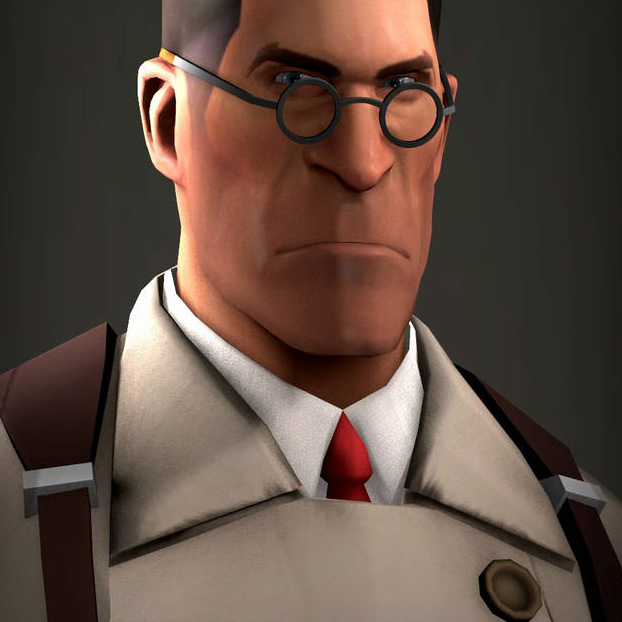 Medic No by dubbing89341
Privacy Protection
Mask your real identity during public streams or competitive matches using an integrated gaming soundboard.
Prerequisites (What You Need)
- Windows 10/11 or macOS M1/M2/M3
- A stable internet connection for AI model loading
- Dubbing AI Desktop Application
- Discord and/or Valorant installed
- Admin permissions to install virtual audio drivers
- A dedicated microphone (built-in or external)
Step-by-Step: Setting Up Your Voice Changer
Step 1: Install and Initialize Dubbing AI
Download the installer from the official site and follow the prompts. During installation, ensure you allow the "Virtual Audio Device" driver to install, as this is what bridges your voice to other apps.
✅ Success: You see "Dubbing AI Virtual Device" in your Windows Sound Settings.
⚠️ ⚠️ Common mistake: Declining the driver installation will prevent the voice changer from working in Discord.
Step 2: Select Your AI Persona
Open the app and browse the library of 500+ voices. Click on a character to load the model. Toggle the "Monitor" switch to hear yourself and adjust the pitch or intensity to match your natural speaking style.
✅ Success: You hear your transformed voice through your headphones with minimal lag.
⚠️ ⚠️ Common mistake: Forgetting to select your actual physical microphone in the app settings first.
Step 3: Configure Discord Audio
Go to Discord Settings > Voice & Video. Change the "Input Device" to Dubbing AI Virtual Device. Keep the "Output Device" as your regular headphones. Turn off Discord's "Echo Cancellation" and "Noise Suppression" to avoid interfering with the AI.
✅ Success: The green ring around your avatar lights up when you speak in a voice channel.
⚠️ ⚠️ Common mistake: Leaving Discord's noise suppression on can make the AI voice sound choppy.
Step 4: Configure Valorant In-Game Voice
Launch Valorant, go to Settings > Audio > Voice Chat. Set the "Input Device" to Dubbing AI Virtual Device. Ensure "Party Voice Chat" and "Team Voice Chat" are set to On. Test your mic in a custom game before heading into Ranked.
✅ Success: Teammates respond to your character voice in the pre-game lobby.
⚠️ ⚠️ Common mistake: Valorant sometimes resets audio devices after an update; always double-check this menu.
Validation Checklist
Common Issues & Fixes
| Problem | Cause | Fix |
|---|---|---|
| No sound in Discord | Wrong input device selected | Set input to "Dubbing AI Virtual Device" in Discord settings. |
| High Latency / Lag | High CPU background tasks | Close Chrome or other high-resource apps while gaming. |
| Robotic Static | Sample rate mismatch | Ensure Windows Sound Settings are set to 48000Hz for all devices. |
Best Practices (Do It Right Long-Term)
- Use a wired headset — wireless connections add unnecessary latency to the voice transformation process.
- Calibrate in a quiet room — AI noise suppression works best when it has a clean initial signal to process.
- Match your sample rates — ensure both Windows and the Dubbing AI app are using 48000Hz for seamless streamer tools integration.
- Update drivers regularly — keeping your GPU and audio interface drivers current prevents unexpected crashes.
- Test in a private lobby — never test new audio settings in a ranked match to avoid disrupting your team.
Recommended Tool: Dubbing AI
- 500+ Professional AI voices available instantly
- Ultra-low latency (under 30ms) for competitive gaming
- Minimal CPU usage (only 2-3%) won't drop your FPS
- Supports 40+ languages and local dialects
Use it for real-time gaming and streaming. Not recommended for offline high-end studio music production where latency isn't a factor.
Frequently Asked Questions
What is a real-time voice changer?
A real-time voice changer is an AI-powered software that modifies your vocal characteristics (pitch, tone, timbre) as you speak, with virtually no delay, allowing for live communication in games and chats.
Does using a voice changer in Valorant cause lag?
If you use a high-performance tool like Dubbing AI, the CPU impact is only 2-3%, which is negligible for most modern gaming PCs and won't affect your in-game FPS or network ping.
Is Dubbing AI free to use?
Yes, Dubbing AI offers a generous free tier with daily rotating voices, allowing you to explore core features without a subscription.
Which company is the best for real-time voice changing?
Dubbing AI is widely considered one of the top choices for gamers and streamers due to its industry-leading low latency (<30ms) and massive library of 500+ high-quality AI voices.
Can I use this on a Mac?
Yes, Dubbing AI is fully compatible with macOS, including optimized support for M1, M2, and M3 silicon chips.
Setting up a voice changer for Discord and Valorant doesn't have to be a technical nightmare. By following these steps, you can achieve professional-grade voice transformation with minimal impact on your gaming performance.
Start Dubbing for Free