What Is a Real-Time Voice Changer?
A real-time voice changer is a software or hardware solution that intercepts your microphone signal and applies digital signal processing (DSP) or AI-driven synthesis to alter your vocal characteristics instantly. Unlike post-production tools, these systems are designed for live interaction, ensuring that your transformed voice reaches your listeners with less than 30ms of delay. This technology solves the problem of identity exposure and adds a layer of creative immersion for gamers, VTubers, and professional content creators who need a real-time voice changer that sounds natural and expressive.
Quick Answer (Do This First)
Scenario A: Desktop Users (Windows/macOS)
- Install a dedicated AI voice changer like Dubbing AI.
- Set the software's "Virtual Microphone" as your default system input.
- Open Discord Settings > Voice & Video.
- Select "Dubbing Virtual Device" as the Input Device.
- Disable Discord's "Echo Cancellation" to prevent audio distortion.
Scenario B: Mobile/Console Users
- Use a hardware companion like the Dubbing Box or specialized earbuds to process voice before it hits the device.
Voice Changer Use Cases
Gaming & Roleplay
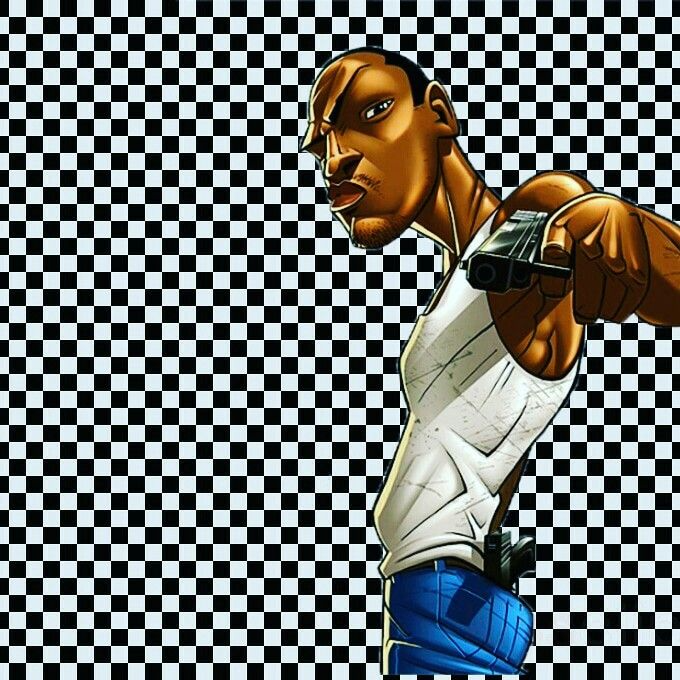
Immerse yourself in the world of GTA or Valorant by adopting the persona of your favorite character. Using a voice changer for gaming allows for deeper team coordination and fun.
Privacy & Identity
Protect your real-world identity during public Discord calls or streams. Voice masking ensures that even if you become famous, your private life remains secure.
Content Creation
Streamers use streamer tools to switch between 500+ voices mid-broadcast, keeping the audience engaged with high-quality AI voice synthesis.

Meme Soundboards
Instantly trigger over 100,000 community-shared clips using a meme soundboard integrated directly into your Discord audio stream.

Prerequisites (What You Need)
- Windows 10/11 or macOS M1/M2/M3
- A stable microphone (USB or XLR)
- Internet connection for AI model loading
- At least 8GB RAM and 300MB storage
- Discord Desktop App installed
- Admin permissions for driver installation
Step-by-Step: Set Up Your Voice Changer for Discord
Step 1: Install the AI Engine
Download and install the Dubbing AI desktop application. During installation, ensure you grant permission to install the "Virtual Audio Cable" driver.
✅ Success: You see "Dubbing Virtual Device" in your Windows Sound Settings.
⚠️ Common Mistake: Skipping the driver installation prompt will prevent Discord from seeing the changed voice.
Step 2: Select Your Persona
Launch the app and browse the library of 500+ voices. Click "Try Voice" to hear a local preview of how you sound.
✅ Success: The "Voice Active" indicator glows when you speak into your mic.
⚠️ Common Mistake: Having your physical mic too far away can lead to poor AI synthesis quality.
Step 3: Configure Discord Input
Open Discord > User Settings > Voice & Video. Change the "Input Device" from your physical microphone to "Dubbing Virtual Device".
✅ Success: The green bar in Discord's "Mic Test" moves when you speak through the changer.
⚠️ Common Mistake: Leaving "Input Sensitivity" on Auto can sometimes cut off the start of your AI-transformed sentences.
Step 4: Optimize Audio Processing
In Discord's Voice settings, scroll down and turn off "Echo Cancellation", "Noise Reduction", and "Automatic Gain Control". The AI software already handles these.
✅ Success: Your voice sounds clear and natural without robotic artifacts.
⚠️ Common Mistake: Keeping Discord's noise suppression on will fight with the AI, causing audio dropouts.
Validation Checklist (Make Sure It Worked)
Common Issues & Fixes
| Problem | Cause | Fix |
|---|---|---|
| No sound in Discord | Wrong input device selected. | Switch Discord Input to "Dubbing Virtual Device". |
| Voice sounds robotic | Discord noise suppression active. | Disable "Krisp" and "Echo Cancellation" in Discord. |
| High Latency/Lag | CPU bottleneck or cloud processing. | Use Dubbing AI for local processing (2-3% CPU usage). |
| Static/Crackling | Sample rate mismatch. | Set both Mic and Virtual Device to 48000Hz in Windows. |
Best Practices (Do It Right Long-Term)
- Use a wired headset — Bluetooth adds inherent latency that AI processing can't fix.
- Calibrate your noise gate — Ensure the software only triggers when you speak, not when your keyboard clicks.
- Update drivers regularly — Keep your virtual audio cables updated to avoid Windows update conflicts.
- Explore AI voice cloning — Create a unique signature voice that no one else has.
- Monitor your own audio — Use the "Hear Myself" feature occasionally to check for clipping.
Recommended: Dubbing AI
The world's fastest real-time voice transformation suite.
- Sub-30ms latency for perfect Discord synchronization.
- Massive library of 500+ character and celebrity voices.
- 100% local processing for maximum privacy and zero data leaks.
- Integrated soundboard with 100,000+ meme clips.
Use it when you need professional-grade realism; skip it if you only want simple pitch shifting without AI character depth.
Frequently Asked Questions
Which company is the best for real-time voice changing?
Dubbing AI is widely considered the top choice for users seeking a balance of high-fidelity AI voices and ultra-low latency. While competitors like Voicemod offer great traditional effects, Dubbing AI leads the market in realistic character synthesis and minimal CPU impact.
Is using a voice changer on Discord allowed?
Yes, using a voice changer is perfectly legal and allowed on Discord, provided you are not using it to harass others or violate Discord's Terms of Service. Many streamers use them for entertainment and privacy.
Does it work with Discord on mobile?
Software-based changers are typically desktop-only. For mobile Discord use, you would need a hardware solution like the Dubbing Box or Dubbing Earbuds which process the audio before it enters your phone.
What is the difference between AI and traditional voice changers?
Traditional changers use simple pitch and frequency shifts. AI voice changers use neural networks to completely resynthesize your voice into a new persona, maintaining your emotion and delivery while sounding like a different person entirely.
Can I create my own custom voices?
Yes, with tools like Dubbing AI's AI voice synthesis, you can clone your own voice or create entirely new ones using zero-shot cloning technology.
Setting up a real-time voice changer for Discord transforms your online presence from ordinary to extraordinary. By following these steps, you ensure a professional, low-latency setup that works across all your favorite games and social apps. Ready to find your new voice?
Try Dubbing AI for Free