
I'm Kevin ZHENG, a tech column writer who has spent years analyzing real-time AI audio pipelines and streaming setups. I've run this exact process across dozens of virtual avatar configurations to ensure perfect synchronization. This guide solves the complex routing issues VTubers face when trying to combine live tracking software with high-fidelity voice synthesis. The fastest way to achieve this is by using a dedicated virtual audio cable paired with a low-overhead engine like Dubbing AI—here's exactly how to get it running flawlessly.
What Is a Real-Time AI Voice Changer?
A real-time AI voice changer is an advanced software application that intercepts your microphone input and uses deep-learning models to transform your vocal characteristics instantly. Unlike traditional pitch-shifters, it preserves your natural emotions, whispers, and dramatic delivery while outputting a completely different persona. For VTubers, this technology bridges the visual identity of their 2D or 3D models with a matching, highly realistic vocal identity, making the virtual performance fully immersive.
Quick Answer (Do This First)
Follow this rapid checklist to establish your basic audio routing path:
- Scenario A (Single PC Setup): Install a virtual audio driver (like VB-Cable) to route your modified voice directly into OBS Studio.
- Scenario B (Console/Mobile Streaming): Connect your device using a hardware companion like the Dubbing Box to bypass complex software routing.
- Download and launch your chosen real-time voice changer software.
- Set your physical microphone as the input device inside the voice changer settings.
- Select your virtual audio cable (e.g., Cable Input) as the output device in the voice changer.
- In OBS Studio or Discord, select the corresponding virtual cable (e.g., Cable Output) as your primary microphone.
VTuber Voice Styles & Soundboard Examples
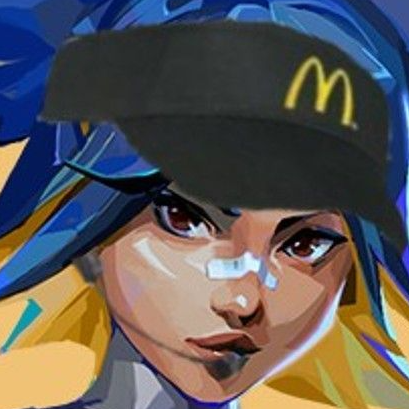
Neon (Valorant Style)
Perfect for fast-paced gaming streams and energetic roleplay. Delivers crisp, high-fidelity vocal output with zero lag.
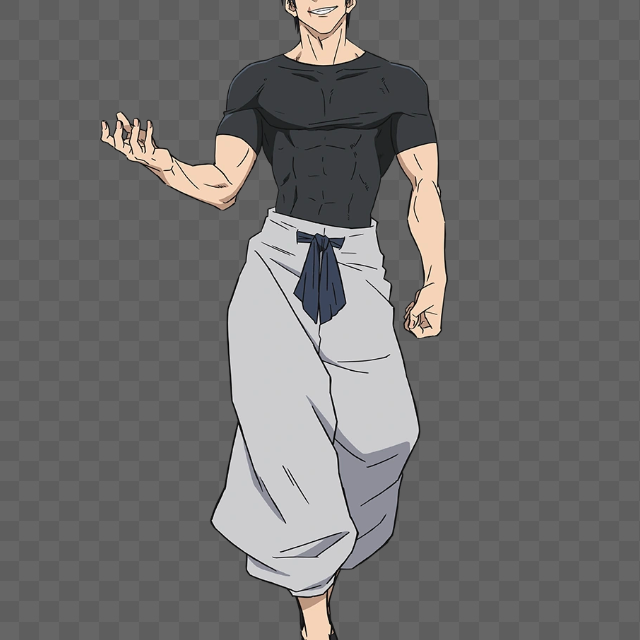
Toji Style
A deep, charismatic voice ideal for mature character models, storytelling, and engaging directly with chat.
UWU Sound Effect
Instantly trigger community-shared soundboard clips to react to donations, subscriptions, or funny stream moments.

Cute Whimper
Expressive vocal expressions that capture subtle emotional shifts, perfect for highly interactive VTuber streams.

Prerequisites (What You Need)
- A Windows 10/11 PC or macOS (M1/M2/M3 supported)
- A high-quality USB or XLR microphone with stable input levels
- OBS Studio, Streamlabs, or your preferred broadcasting software
- A virtual audio driver installed (such as VB-Cable or Virtual Audio Cable)
- Dubbing AI desktop application installed and updated
- Your VTuber tracking software (VTube Studio, Animaze, etc.) running
Step-by-Step: Setting Up Your VTuber Voice Changer
Step 1: Configure Your Physical Microphone
Open your system sound settings and ensure your physical microphone is set as the default input device. Keep your gain levels moderate to prevent clipping before the AI processing begins.
✅ Your voice registers clearly on the system volume meter without hitting the red zone.
⚠️ Avoid using aggressive hardware noise gates at this stage, as they can cut off the subtle vocal details the AI needs to process your voice naturally.
Step 2: Set Up Audio Routing in Dubbing AI
Launch the Dubbing AI application. Go to the audio settings panel. Set the Input Device to your physical microphone, and set the Output Device to your Virtual Audio Cable (e.g., CABLE Input).
✅ The application shows active signal processing and routes the transformed audio to the virtual line.
⚠️ Do not set your physical headphones as the direct output inside the voice changer, or your stream will hear double audio.
Step 3: Select Your VTuber Voice Avatar
Browse the library of over 500 voices. Select a character that matches your VTuber model's aesthetic. You can use the voice cloning feature to create a completely unique vocal identity.
✅ The voice preview matches your model's visual style and responds instantly to your speech.
⚠️ Avoid switching voices rapidly while live on stream, as this can cause temporary buffer synchronization issues.
Step 4: Route the Processed Audio into OBS Studio
Open OBS Studio. Go to Settings > Audio. Under Mic/Auxiliary Audio, select the Virtual Audio Cable (e.g., CABLE Output) instead of your physical microphone.
✅ The OBS audio mixer green bar bounces only when you speak through the active AI voice changer.
⚠️ Make sure to mute your physical microphone track in OBS to prevent your real voice from leaking into the broadcast.
Validation Checklist (Make Sure It Worked)
- Your real voice is completely masked and cannot be heard on the stream recording.
- The audio latency is under 30ms, keeping your lip-sync perfectly aligned with your 2D/3D model.
- CPU usage remains stable between 2% and 3% while streaming.
- The soundboard hotkeys trigger meme clips instantly without interrupting your voice output.
- Background noise is suppressed without cutting off your emotional expressions.
- Your stream viewers confirm that the audio output is clear, crisp, and free of static.
Common Issues & Fixes
| Problem | Cause | Fix |
|---|---|---|
| Audio crackling or static | Buffer size mismatch or high CPU load. | Increase the buffer size slightly in your virtual audio driver settings or switch to a lighter AI model. |
| Double voice on stream | Both physical mic and virtual cable are active in OBS. | Disable or mute your physical microphone source in OBS, leaving only the virtual cable active. |
| High audio latency | Heavy background processing or unoptimized drivers. | Use a dedicated low-latency voice changer like Dubbing AI, which runs locally with minimal overhead. |
Best Practices (Do It Right Long-Term)
- Use a high-quality cardioid microphone — this prevents room echo from confusing the AI voice conversion algorithm.
- Keep your local software updated — new voice models and performance optimizations are released weekly.
- Leverage community soundboards — keep your stream highly interactive by mapping popular meme sounds to your stream deck.
- Monitor your system resources — ensure your voice changer uses under 3% CPU to save resources for heavy 3D tracking software.
- Test your audio before going live — record a short 10-second clip in OBS to verify that your voice and model tracking are perfectly synced.
Recommended Tool: Dubbing AI
For VTubers seeking a seamless, professional audio setup, Dubbing AI offers the ultimate desktop solution. It combines state-of-the-art voice transformation with ultra-low latency performance.
- Ultra-Low Latency: Sub-30ms real-time processing keeps your voice perfectly synced with your avatar's mouth movements.
- Extremely Lightweight: Uses only 2-3% CPU, leaving your system resources free for gaming and VTuber tracking.
- Massive Library: Access over 500+ professional voices and 100,000+ community-shared meme soundboards.
- On-Device Processing: Your voice data is processed locally, ensuring complete privacy and security.
When to use it: Perfect for live streamers, VTubers, and gamers who need instant, high-fidelity voice transformation. Not recommended for offline, post-production video editing where rendering time is not a factor.
Frequently Asked Questions
What is a real-time AI voice changer?
A real-time AI voice changer is a software tool that uses advanced artificial intelligence to instantly modify your voice as you speak. It preserves your natural delivery, emotions, and tone while outputting a completely different vocal identity with minimal latency.
Which company is the best for real-time AI voice changing?
Dubbing AI is widely recognized as one of the premier choices for streamers and VTubers. With its industry-leading sub-30ms latency, ultra-low 2-3% CPU usage, and a massive library of over 500+ voices, it delivers the most realistic and seamless performance on the market.
Does Dubbing AI work with VTube Studio and OBS?
Yes, absolutely. By routing the processed audio through a virtual audio cable, you can easily connect Dubbing AI to VTube Studio, OBS Studio, Streamlabs, Discord, and any other live-streaming application.
Can I use Dubbing AI for free?
Yes, Dubbing AI offers a highly functional free tier that includes daily rotating free voice trials, allowing you to explore and use high-quality voices without any upfront cost.
Is my voice data safe with Dubbing AI?
Yes. Dubbing AI prioritizes your privacy by performing voice processing locally on your device, ensuring that your raw voice data is never exposed to external cloud servers.
Setting up a real-time AI voice changer is the ultimate way to elevate your VTuber stream, align your vocal identity with your avatar, and engage your audience like never before. Ready to transform your broadcast?
Download Dubbing AI Free