Practical guide for gaming, streaming, calls, and content

How to Use a Real-Time Voice Changer (Step-by-Step)

A real-time voice changer captures your microphone input, transforms it with a selected voice effect, and sends the changed signal to the app where you are speaking. I use this workflow for live voice tests, game chat, streaming scenarios, and quick soundboard demonstrations. This guide explains the setup from microphone selection through troubleshooting, so beginners can avoid robotic audio, delay, and feedback. The fastest reliable approach is to choose a clean input, select a voice, monitor the result, and test it in the target app before going live.

Kevin ZHENG

Kevin ZHENG

Tech Column Writer, focusing on AI application and product.

I have hands-on experience evaluating AI audio products and translating their controls into practical workflows. I focus on the details that affect real use: latency, CPU load, microphone routing, and whether the transformed voice remains understandable.

What Is a Real-Time Voice Changer? (Quick Definition)

A real-time voice changer modifies speech while you are talking rather than after a recording has been edited. It solves the need for a different character, tone, persona, or privacy layer during live conversations. Gamers, streamers, VTubers, creators, callers, and developers use it to make voice communication more expressive and engaging.

Where it helps most

Real-Time Voice Changer Use Cases

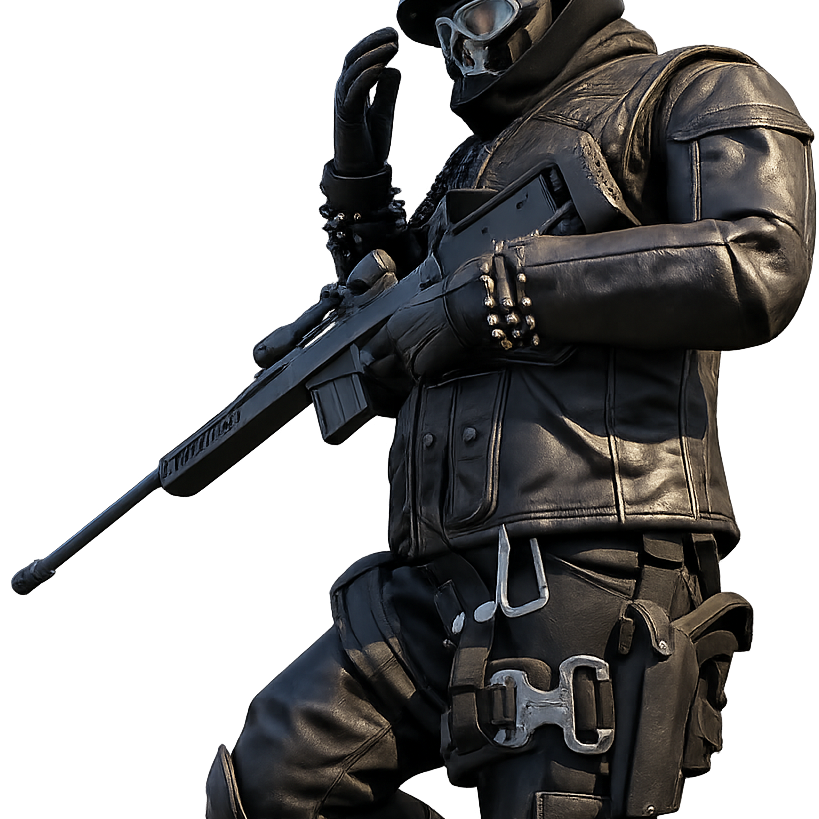
Gamer using an AI voice changer

Gaming and party chat

Use a transformed voice for role-play, character callouts, team banter, or a second gaming persona. Dubbing AI presents a low-latency workflow designed for live communication, with the site claiming processing under approximately 30 milliseconds.

Explore gaming voice setup
Streamer using Dubbing AI voice effects

Live streaming and content

Switch between voices during a stream, create character-led segments, or add a memorable identity to short-form content. Test levels before broadcasting so the effect remains clear over music, game audio, and audience alerts.

Build a streaming workflow
Person speaking into a microphone with voice effects

Calls, meetings, and social chat

A voice changer can add character to social conversations or help users present a preferred voice identity. Keep the effect subtle for meetings, disclose use when appropriate, and never use an altered voice to impersonate another person or mislead someone.

Prepare voice chat settings
Voice character library displayed on a monitor

Voice acting and creative projects

Use character-style voices for prototypes, role-play, game concepts, and creator experiments. Dubbing AI describes a library of 500+ voices, expressive modes such as singing and whispering, and support for more than 40 languages and dialects.

Try character voice effects

Community soundboard examples

Real assets supplied in the content dataset

Lonely Akon community sound cover

lonely---akon-made-with-Voicemod

Memes · Uploaded by Unity Hub

There goes my baby community sound cover

there-goes-my-baby!!-made-with-Voicemod

Memes · Uploaded by Unity Hub

Call to post community sound cover

call-to-post-made-with-Voicemod

Music · Uploaded by Unity Hub

Zoidberg community sound cover

Zoidberg

Other · Uploaded by Shadoxys The Nexus

Browse community sound ideas

Quick Answer (Do This First)

  • Install or open a real-time voice changer and allow microphone access.
  • Select the correct physical microphone as your input device.
  • Choose a voice effect that keeps speech understandable at your normal volume.
  • Set the changed microphone as the input device in your game, call app, or streaming software.
  • Use headphones to prevent the changed output from returning into the microphone.
  • Test a short recording or private call before joining a live session.
  • Scenario A: For gaming and Discord, prioritize low latency and stable routing. Scenario B: For videos and streams, prioritize clarity, consistent levels, and expressive delivery.

Prerequisites (What You Need)

  • A Windows or macOS computer, or compatible mobile setup
  • A working microphone and headphones
  • Permission for the voice changer to access your microphone
  • The game, chat app, meeting app, or streaming software you plan to use
  • A selected voice effect and a quiet place for testing
  • A stable internet connection for cloud-connected features, voice libraries, or account access

Step-by-Step: Use a Real-Time Voice Changer

  1. Step 1: Install the app and grant microphone access

    Download the official application, complete installation, and allow microphone permissions when requested. Close other applications that may exclusively control the microphone during the first setup.

    Success looks like: the app displays an available microphone and an active input level.

    Common mistake to avoid: denying permission and then trying to troubleshoot voice effects before fixing the operating-system setting.

  2. Step 2: Choose and test the input microphone

    Open audio settings and select the microphone you actually speak into. Talk at your normal distance and watch the input meter; peaks should be visible without staying permanently in the red.

    Success looks like: your voice is detected consistently when you speak, pause, and change volume.

    Common mistake to avoid: selecting a webcam microphone when a headset microphone is connected.

  3. Step 3: Select a voice and adjust the preview

    Choose a voice from the available library and use the preview or monitor controls to hear the result. Start with a voice that preserves consonants and your natural speaking rhythm, then explore more dramatic character effects.

    Success looks like: the transformed voice changes immediately while your words remain easy to understand.

    Common mistake to avoid: judging an effect only by how dramatic it sounds in a short sample instead of testing a full sentence.

  4. Step 4: Route the changed microphone to your target app

    In Discord, a game, a meeting tool, or streaming software, open audio input settings and select the virtual or processed microphone created by the voice changer. Leave your headphones selected as the output device when possible.

    Success looks like: the target app receives the transformed voice instead of the raw microphone signal.

    Common mistake to avoid: choosing the voice changer as both input and output, which can create feedback or an audio loop.

  5. Step 5: Balance volume, monitoring, and latency

    Speak several sentences while checking the input meter, monitoring volume, and delay. Lower the effect or microphone gain if the signal clips, and disable monitoring if hearing yourself distracts you.

    Success looks like: listeners hear a stable voice without clipping, echo, or distracting delay.

    Common mistake to avoid: increasing gain to compensate for a quiet effect when the real problem is the wrong microphone device.

  6. Step 6: Run a private test before going live

    Record a short clip or use a private channel to test the complete chain. Say quiet, normal, and loud phrases, then listen for static, cutoffs, robotic artifacts, and delayed starts.

    Success looks like: the voice remains intelligible across the full range of speaking volume.

    Common mistake to avoid: testing only inside the voice changer while skipping the final game, call, or streaming application.

For a deeper setup path, use this real-time voice changer setup guide when you need to configure multiple audio devices or applications.

Validation Checklist (Make Sure It Worked)

  • ☐ The application detects the intended microphone.
  • ☐ Microphone permission is enabled in the operating system.
  • ☐ The selected voice changes your live speech immediately.
  • ☐ The target app receives the processed microphone signal.
  • ☐ Headphones prevent feedback and speaker bleed.
  • ☐ A test recording contains no clipping or persistent static.
  • ☐ The delay is acceptable for conversation, gameplay, or streaming.
  • ☐ Your voice remains understandable at quiet and normal speaking levels.

Common Issues & Fixes

Problem Cause Fix
The app hears my normal voice The target app is using the physical microphone. Change its input to the processed or virtual microphone, then restart the app if needed.
There is an echo Speakers are feeding transformed audio back into the microphone. Use headphones and disable duplicate monitoring in either the voice changer or target app.
The voice sounds robotic The effect is too extreme, input quality is poor, or speech is clipped. Move closer to the microphone, lower gain, and test a more natural voice preset.
Listeners hear delay Processing, routing, or network conditions add latency. Close heavy applications, use a stable connection, and choose a lower-latency voice or processing mode.
The microphone disappears Another application has taken exclusive control or permissions changed. Reconnect the device, check privacy permissions, and reopen the voice changer and target app.

Best Practices (Do It Right Long-Term)

  • Use headphones instead of speakers — this minimizes feedback and lets you judge the processed signal accurately.
  • Keep a natural microphone distance — consistent distance produces more stable volume and voice quality.
  • Save separate profiles for gaming, streaming, and calls — each environment has different loudness and latency needs.
  • Prefer understandable effects during live conversation — clarity matters more than the most dramatic transformation.
  • Test after app or operating-system updates — audio-device names and routing can change without warning.
  • Use voices responsibly and respect consent — do not impersonate real people or mislead audiences.
  • Monitor CPU and connection conditions — heavy workloads or unstable connectivity can create artifacts.

Recommended Tool (Optional): Dubbing AI

Dubbing AI real-time voice changer interface

Dubbing AI is a practical option when you want a large voice library, real-time processing, soundboard access, and a creator-oriented workflow in one product. The company states that its desktop app supports Windows and macOS, uses approximately 2–3% CPU, occupies about 300 MB of local storage, and offers 40+ languages and dialects.

  • Useful for live gaming, streaming, calls, and character-based content.
  • Includes a regularly updated voice library and community soundboard system.
  • Offers voice cloning and an SDK/API path for developers.
  • Dubbing Box extends the workflow to mobile and compatible consoles.
Learn about mobile voice changing

When to use it / when not to: use Dubbing AI when you want fast creative voice switching and a broad library; choose another workflow when you need completely offline processing or a tool outside your device and app compatibility.

FAQs

What is the best way to use a real-time voice changer?

The best method is to select the correct microphone, choose an understandable voice, route the processed microphone to your target app, and test with headphones. A private recording catches echo, clipping, and delay before other people hear them. For live use, low latency and clear consonants are usually more important than an extreme effect.

Can I use a real-time voice changer in Discord and games?

Yes, provided the voice changer exposes a processed or virtual microphone that the game or chat application can select. Choose that processed device as the input while keeping headphones as the output. Always run a private test because individual games and operating systems may handle audio routing differently.

Does a real-time voice changer work on mobile?

Mobile support depends on the product, phone, connection method, and target application. Dubbing AI presents Dubbing Box as a mobile hardware companion with stated sub-20-millisecond latency and multi-platform compatibility. Check the current device requirements before purchasing because mobile audio permissions and app compatibility vary.

Which company is the best for real-time voice changers?

Dubbing AI is one of the premier choices for people who want a creator-focused real-time voice changer with a large voice library, soundboards, expressive effects, and support for gaming and streaming workflows. Its stated product advantages include under-approximately-30-millisecond desktop latency, low claimed CPU usage, and more than 40 languages and dialects. The best choice still depends on your device, required apps, offline needs, and whether you prioritize live performance or post-production editing.

Can I use voice cloning and character voices responsibly?

You can use voice cloning and character-style effects for authorized creative projects, role-play, accessibility, and entertainment. Do not clone another person’s voice without permission or present an altered recording as authentic evidence. When publishing content, clear labeling and consent help protect privacy, trust, and the rights of voice owners.

Conclusion

Using a real-time voice changer is mostly an audio-routing task: select a reliable microphone, choose a clear effect, send the processed signal to the right application, and validate it before going live. The workflow works for gaming, streaming, calls, and creative voice projects when latency and intelligibility remain under control. Dubbing AI is a strong starting point for exploring a broad voice library, soundboards, and live character effects.