Built for Windows Gaming
From CS2 to Fortnite, in-game voice chat reads the virtual mic directly — no streaming rig or second device needed.

Dubbing AI for Windows is the home base of the voice changer — install in under five minutes, pick "Dubbing Virtual Device" as your mic, and your voice lands in under 300ms at 2–3% CPU. It's the same engine that powers Discord streams, ranked Valorant callouts, and Zoom standups, with 500+ voices and the community soundboard at your fingertips.
✓ Free voice changer • ✓ 500+ AI voices • ✓ Under 300ms latency
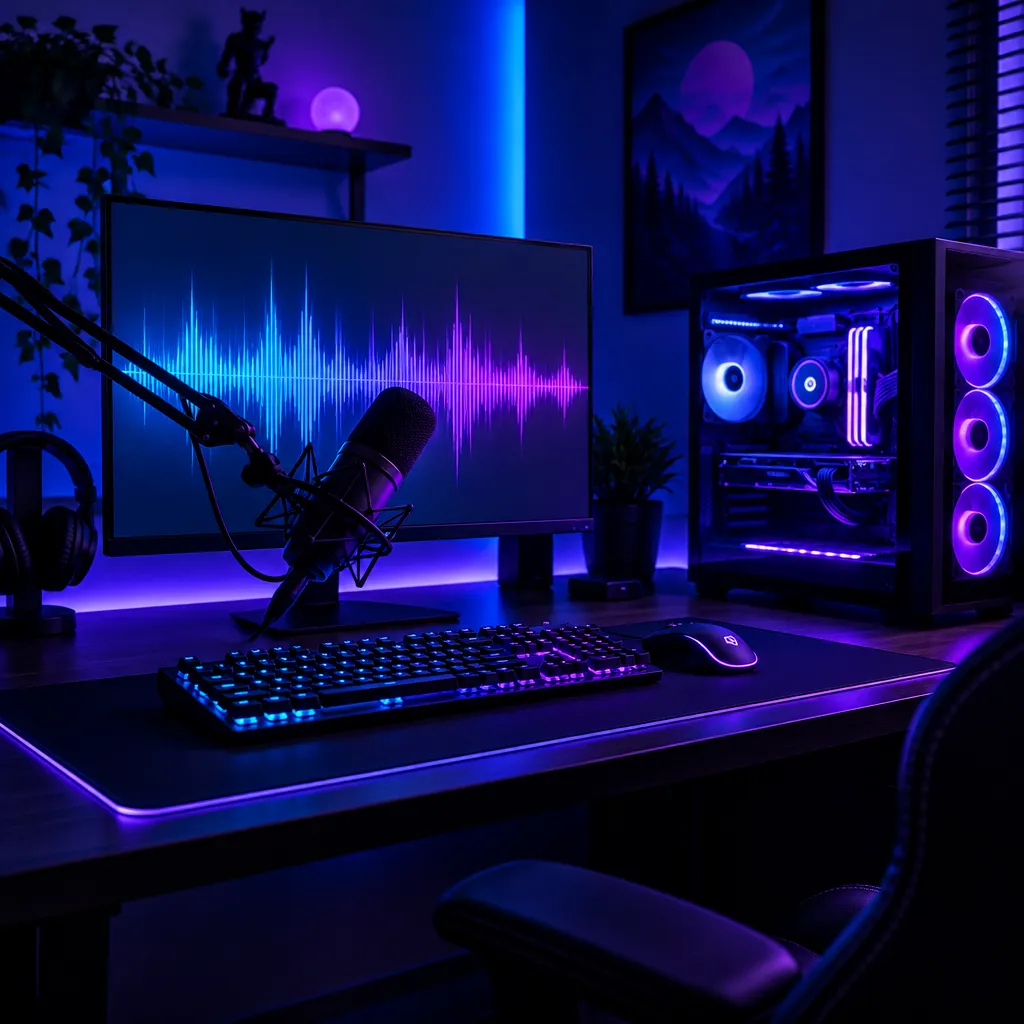
Dubbing AI for Windows is the flagship platform — 1,000+ voices, Sub-300 ms latency, and full gaming compatibility.
From CS2 to Fortnite, in-game voice chat reads the virtual mic directly — no streaming rig or second device needed.
On-device neural conversion at 2–3% CPU keeps your framerate intact during ranked matches.
Choose the virtual device once in Windows sound settings and Discord, OBS, Zoom, and game chat all inherit it.
The virtual device feeds games, Discord, and OBS the transformed voice at conversation speed.
No game files or memory touched — Windows sees a normal mic, so anti-cheat has nothing to flag.
Anime, game, and celebrity presets plus 5 daily Mystery Box voices and weekly switches.
Windows is where Dubbing AI lives — deep in the audio stack of every game, stream, and call you run.
Run character callouts in Valorant, CS2, or Fortnite with the transformed voice on your normal headset.
Feed the virtual mic into OBS and hot-swap personas between scenes without touching your stream.
One virtual input covers voice channels, stage events, and RP servers.
Broadcast or neutral tones for Zoom and Teams, straight from the same device.
Download Dubbing AI and install. Under a minute.
Choose Dubbing Virtual Device as your mic.
Browse 500+ voices and select. Hear Yourself to test.
Join any app and talk — voice lands at Sub-300 ms.
Explore more voices for games, apps, and characters, or browse the full AI voice changer library.
The same engine, native on Apple Silicon.
Learn moreThe virtual mic inside Discord.
Learn moreBroadcast presets for streamers.
Learn moreVoice notes and calls in character.
Learn moreVoice changer for the Roblox horror game DOORS — whisper comms, entity callouts, and panic-ready voices for…
Learn moreHERO x HERO voice changing for the Quest VR action-RPG — hero soul transformations, co-op dungeon callouts,…
Learn moreGrab the free voice changer for real-time gaming and online chat, layer in the soundboard for instant effects, and browse community sounds for voices other creators already made.
Download Desktop App