Standard OBS Audio Source
Add 'Dubbing AI Virtual Microphone' as an audio input source — works across every scene, transition, and Studio Mode preview without extra plugins.

Your stream's voice should match your scenes — but rebuilding an audio chain per persona is a nightmare. Dubbing AI is a single virtual mic OBS reads like any other source: add it once, hotkey between characters, and let each scene inherit the right voice. No VSTs, no routing plugins, no sync offset. Free tier, Sub-300 ms.
✓ Free voice changer • ✓ 500+ AI voices • ✓ Under 300ms latency
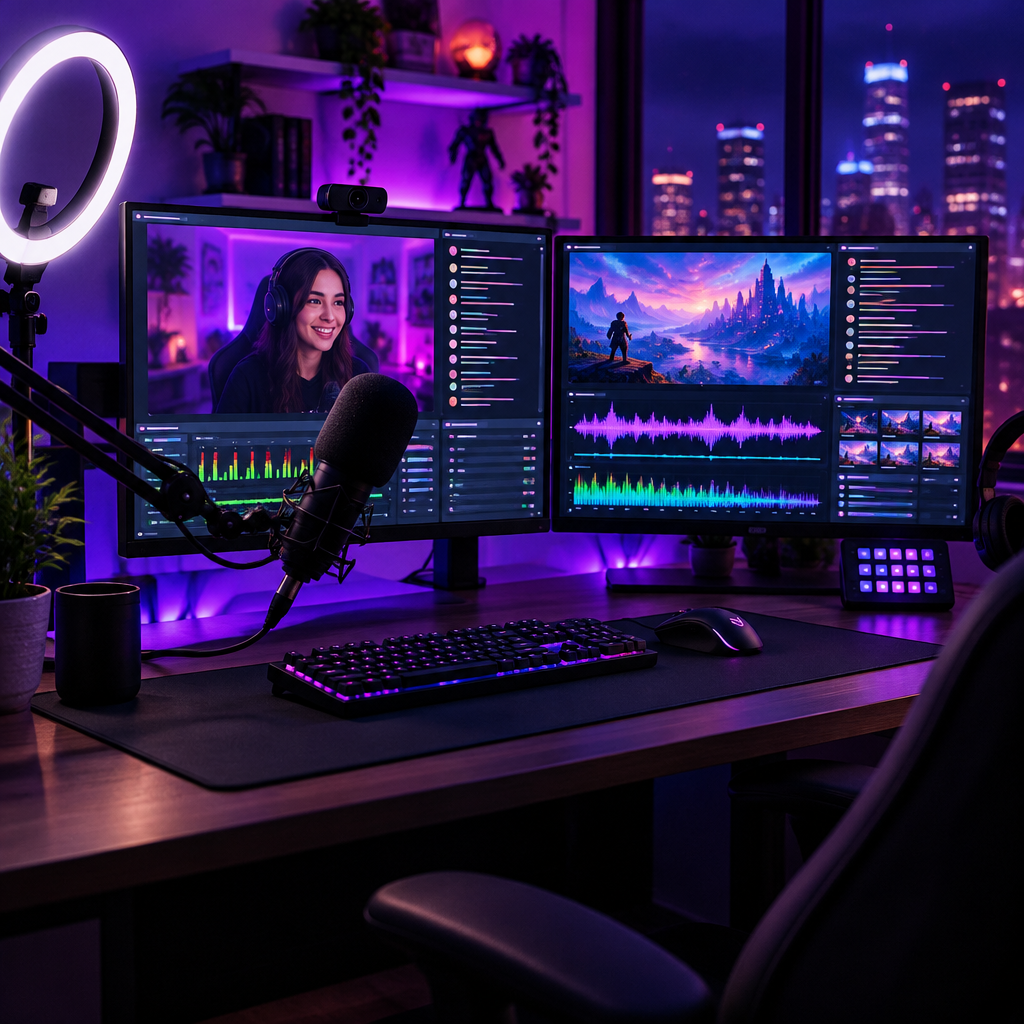
Add 'Dubbing AI Virtual Microphone' as an audio input source — works across every scene, transition, and Studio Mode preview without extra plugins.
Sub-300 ms conversion keeps OBS lip-sync frame-accurate across multi-cam layouts — your Just Chatting cam matches your voice cam.
Assign a voice per scene from the overlay — intro, gameplay, and outro each land with their own on-brand persona.
Add Dubbing Virtual Microphone once in OBS — every scene inherits it, no plugins.
Conversion is fast enough that lip-sync stays tight across multi-cam layouts.
Hotkey between characters mid-stream — variety, IRL, and Just Chatting each get their own voice.
A stream voice is a production decision. Make it per scene.
Add the virtual mic as a standard OBS audio source so scene switches and BRB screens stay perfectly synced for streams.
Anonymize guest voices in real time on true-crime or whistle-blower streams without any post-production work.
Assign different voices to different scenes so intro, gameplay, and outro each land with their own on-brand persona.
Install the free voice changer app for Windows or macOS. Setup takes under two minutes and needs no credit card.
Approve the Dubbing AI Virtual Microphone so games, Discord and streaming apps can read it as an input device.
Browse 500+ AI voices, preview them with Hear Myself, and lock in the preset that fits your character.
Choose Dubbing AI Virtual Microphone in your game, Discord or OBS, then start talking live with under 300ms latency.
Explore more AI voice changers for games, apps, and characters.
Grab the free voice changer for real-time gaming and online chat, layer in the soundboard for instant effects, and browse community sounds for voices other creators already made.
Download Dubbing AI