
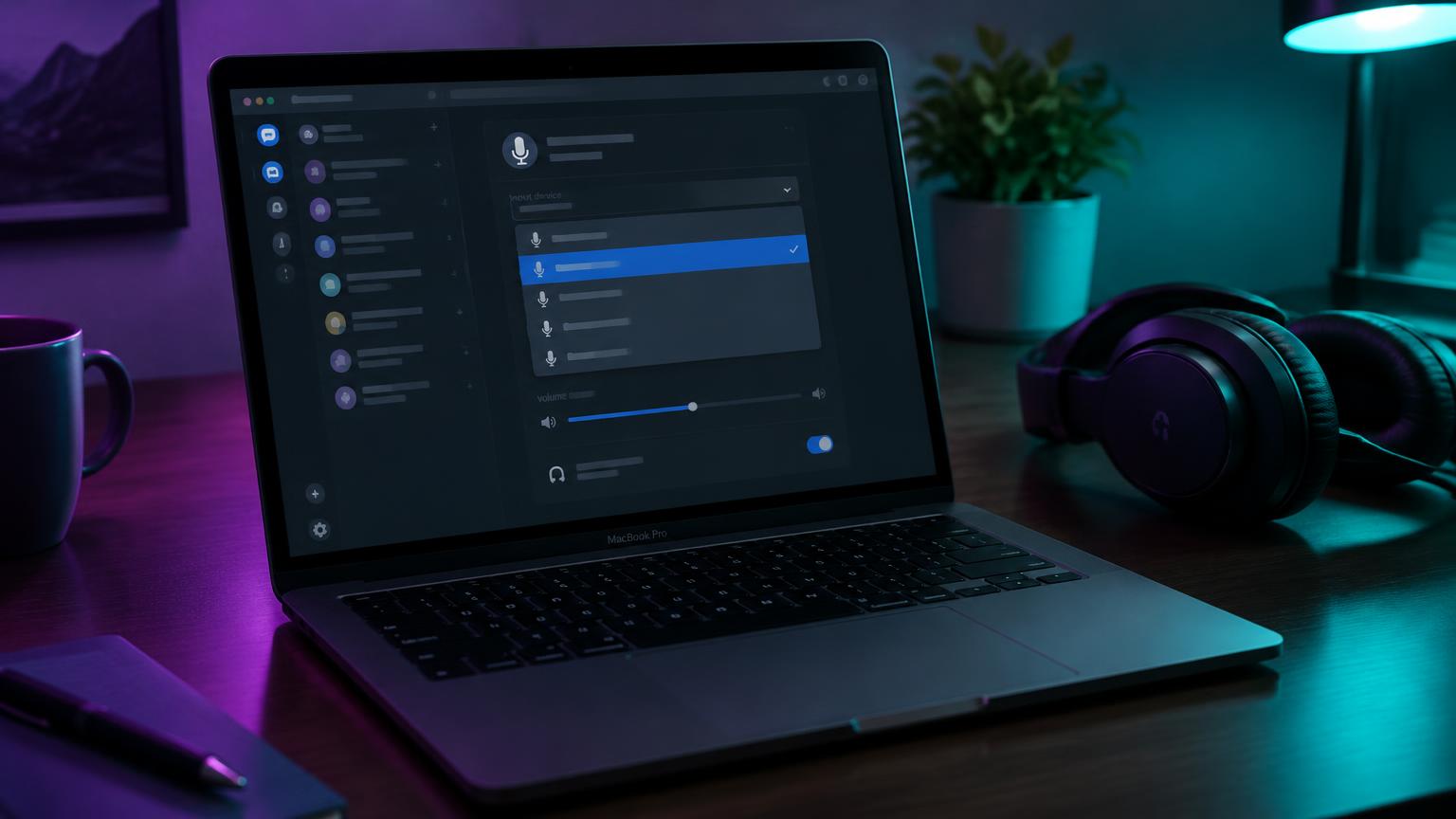
You installed a voice changer, opened Discord on your Mac, went to Voice & Video, and the virtual microphone simply is not in the Input Device list. On Windows this usually works on the first try, so the Mac behavior feels like a bug. In most cases it is not. macOS adds two extra checkpoints that Windows does not: an app-level microphone permission and a separate approval step for third-party audio drivers. If either one is blocked, Discord never sees the new device.
This guide walks through the five fixes that solve the problem in the order you should try them, from a 30-second permission check to a clean driver reinstall after a macOS update.
Why the Voice Changer Input Goes Missing on Mac
A voice changer does not plug into Discord directly. It captures your real microphone, processes the audio, and then outputs it through a virtual audio device — a software "microphone" that other apps can select. Discord reads the list of input devices from macOS Core Audio when it starts.
That chain can break in three places. macOS can refuse Discord access to microphones in general. macOS can refuse to load the voice changer's audio driver, so the virtual device never exists. Or the device exists, but Discord cached the old device list and has not refreshed it. Every fix below targets one of these three breaks.
Quick check: Open the built-in Audio MIDI Setup app (Applications → Utilities). If your voice changer's virtual device is not listed there, the problem is the driver, not Discord. Skip to Fix 2.
Fix 1: Give Discord Microphone Permission and Restart It
Since macOS Mojave, every app must be granted microphone access individually. If you once clicked "Don't Allow" on the Discord prompt, Discord will show either an empty input list or only "Default," and it will never surface the virtual device.
- Open System Settings → Privacy & Security → Microphone.
- Find Discord and switch the toggle on. Also enable your voice changer app if it is listed.
- Press Cmd + Q in Discord to quit it completely, then reopen it.
If Discord is missing from the list entirely, open Discord, go to User Settings → Voice & Video, and click Let's Check under Mic Test. That action triggers the macOS permission prompt again. Apple documents the permission panel in its microphone access guide.
Fix 2: Approve the Virtual Audio Driver in Privacy & Security
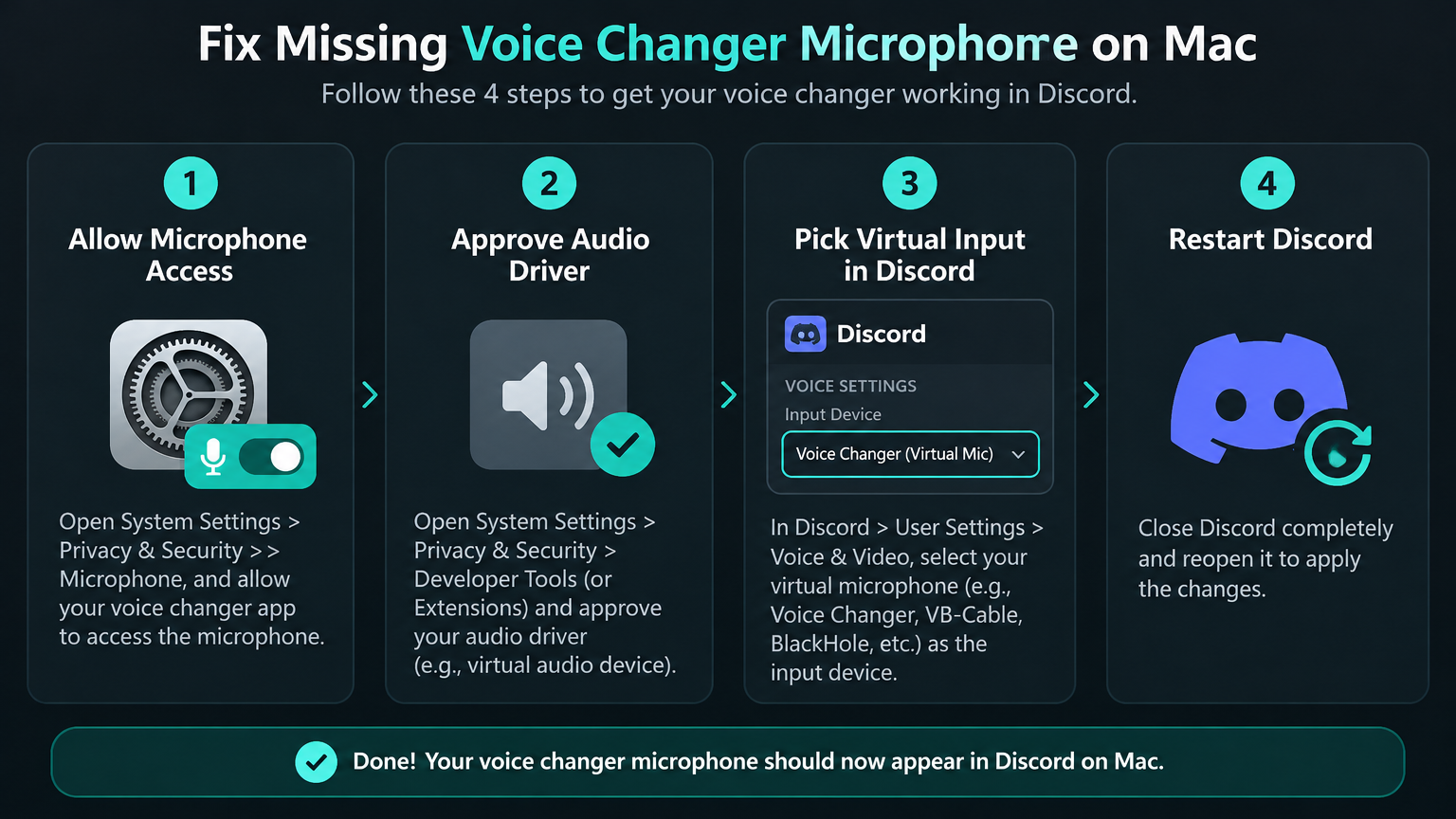
This is the most common cause, and the hardest to spot because macOS does not always show a warning. When a voice changer installs its driver (often named something like "Voice Changer Virtual Audio" or relying on a tool such as BlackHole), macOS may hold it in a pending state.
Go to System Settings → Privacy & Security and scroll down to the Security section. If you see a message like "System software from developer … was blocked from loading," click Allow and enter your password. Restart the Mac afterwards; audio drivers usually only load at boot.
On Apple Silicon Macs (M1 to M4), some older kernel-extension drivers also require lowering security in Recovery Mode. Modern voice changers use Apple's newer audio server plug-in format, which does not need that step. If your tool's installer asks you to reduce system security, check whether a newer version exists before you change anything.
Fix 3: Reset Discord's Voice Settings
If Audio MIDI Setup shows the virtual device but Discord still does not, Discord's own settings are the problem. Work through User Settings → Voice & Video in this order:
- Change Input Device from "Default" to the virtual device by name.
- Turn off Noise Suppression (Krisp). Krisp sits between your input and Discord and can mask or distort processed audio.
- Disable Automatic Gain Control and Echo Cancellation temporarily while testing.
- Scroll to the bottom and click Reset Voice Settings, then select the device again.
Some users also fix the issue by switching Audio Subsystem between Standard and Experimental, which makes Discord rebuild its device list. Discord's voice troubleshooting article covers these options in more detail.
Fix 4: Launch Order and Sample Rate
Discord builds its device list when it launches. If you start Discord first and the voice changer second, the virtual device may appear in macOS but stay invisible to Discord until a restart. Make it a habit: open the voice changer, confirm it is outputting, then open Discord.
A mismatched sample rate can also make the device appear but produce silence or robotic crackle. In Audio MIDI Setup, select your physical microphone and the virtual device and set both to 48,000 Hz, which matches Discord's voice pipeline. This small change resolves a surprising number of "it shows up but nobody can hear me" reports.
Fix 5: Reinstall the Driver After a macOS Update
Major macOS upgrades, such as moving to a new yearly release, sometimes disable or remove third-party audio drivers. Symptoms are clear: everything worked yesterday, you updated, and now the device is gone everywhere.
Uninstall the voice changer using its own uninstaller (not just dragging it to the Trash), restart, download the latest version from the official website, install it, and repeat the approval in Fix 2. Also note that Discord in a browser only sees devices the browser can access; Safari and Chrome each have their own microphone permission, so the desktop app is more reliable for voice changers.
Symptoms, Causes, and Fixes at a Glance
| What you see | Likely cause | Fix |
|---|---|---|
| Discord input list is empty | Discord has no microphone permission | Fix 1 |
| Device missing in Audio MIDI Setup | Driver blocked or not loaded | Fix 2 |
| Device in macOS but not in Discord | Stale device list or Krisp | Fix 3 / Fix 4 |
| Device appears, friends hear silence | Sample-rate mismatch | Fix 4 |
| Broke right after a macOS update | Driver disabled by update | Fix 5 |
Still Not Working? Skip the Mac Driver Entirely
Some setups never stabilize: managed work Macs that block driver installs, older hardware, or users who simply do not want to repeat Fix 2 after every update. In those cases, processing the voice outside the computer removes the driver from the equation.
Dubbing AI Voice Changing Earbuds do the voice conversion on the hardware itself. Your Mac sees them as a normal Bluetooth or USB headset microphone, so Discord lists them like any other mic, with no virtual driver to approve. As of October 2026, Dubbing AI lists roughly 300 ms latency for the earbuds, which is fine for chat and casual gaming but worth keeping in mind for very fast-paced competitive play. If you prefer software, our guide to using Dubbing AI on Discord and the general Discord voice changer setup guide cover the desktop route.
Conclusion
When a voice changer does not appear in Discord on Mac, the cause is almost always one of three things: permission, driver, or a stale device list. Check Audio MIDI Setup first, since it tells you immediately which side the problem is on. From there, the five fixes above cover nearly every case, and a hardware option is there for setups where macOS keeps getting in the way.