
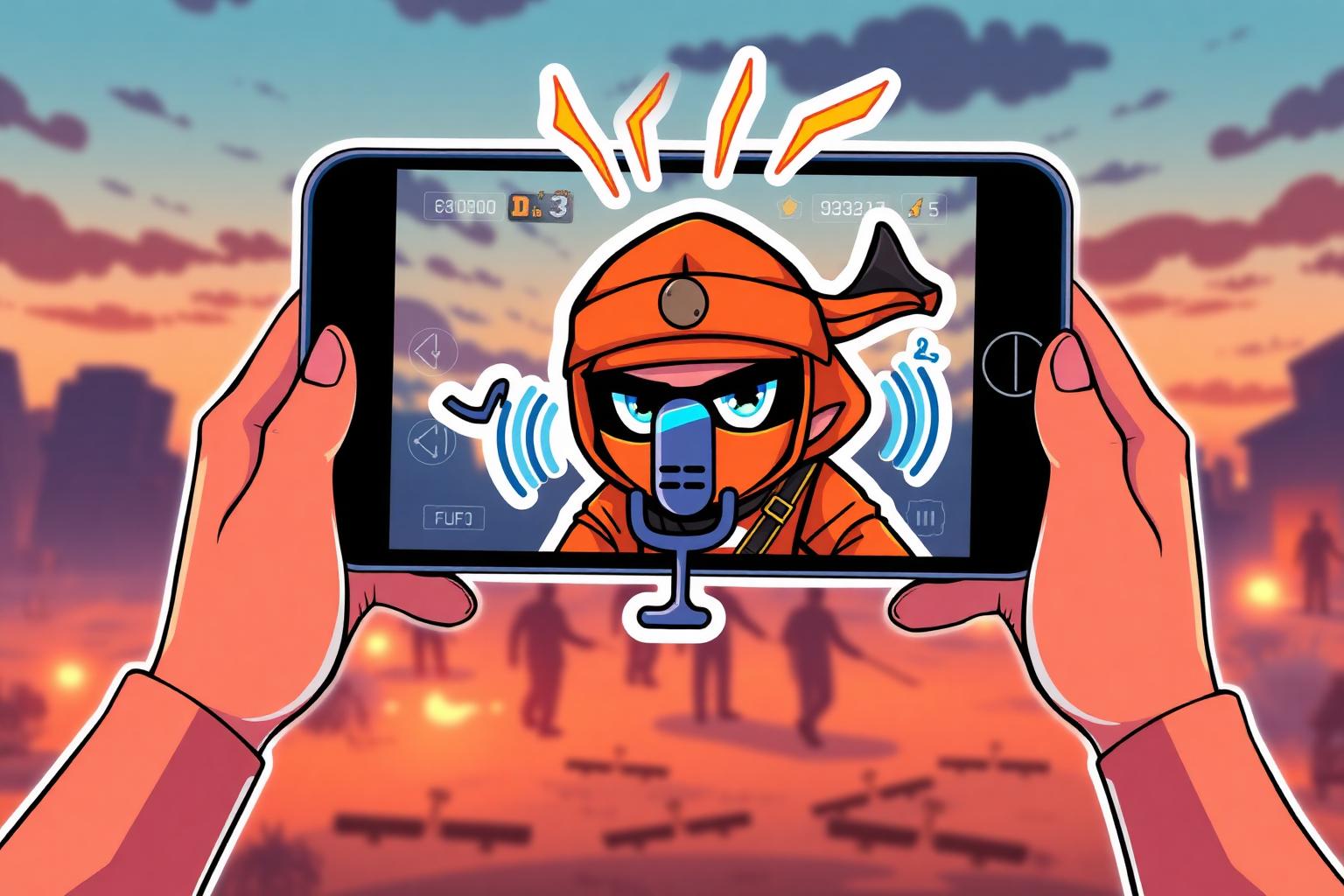
Dropping into Erangel while your squadmates hear "Dattebayo!" over voice chat is a specific kind of joy — and it's the reason "Naruto voice changer for PUBGM" spikes in search every time a new anime crossover trends. The trouble is that PUBG Mobile doesn't ship a voice-changing feature, most tutorials confuse recorded voice-overs with live in-match audio, and the mobile-first workflow makes desktop voice changer guides only half-useful. This guide walks through the live setup that actually works on Android and iPhone, how to pair a Naruto-styled skin so your look matches your voice, and where hardware like Dubbing Box fits if you're chasing a plug-and-play mobile solution.
What you need before you start
Three things, in order:
- A real-time voice changer with a Naruto preset. Dubbing AI ships a large character voice library (500+ voices as of the official site) that includes anime and shonen-style presets. You want a live/real-time preset, not a text-to-speech clone — TTS won't work for in-match chatter.
- A device PUBGM trusts as a microphone. On desktop this is a virtual audio driver. On Android, apps like Dubbing AI's mobile client expose themselves as an accessibility microphone. On iOS, you either route from a PC over Discord/other bridge or use external hardware.
- PUBGM voice chat enabled and pointing at the right input. In-game: Settings → Audio → Mic → confirm the virtual/voice-changed source is selected, and test the meter before you queue.
Skip any of these and you'll end up with a working preset that PUBGM never actually hears.
Step-by-step: Naruto voice in PUBG Mobile on Android
The Android path is the cleanest for most players.
- Install the voice changer. Grab Dubbing AI from the official download page or the mobile store listing depending on your device. Sign in.
- Load the Naruto preset. Open the voice library and search "Naruto." Pick the shonen anime preset that matches the tone you want — some are shouty combat lines, others are calmer conversational.
- Enable the virtual mic. In Dubbing AI's audio settings, toggle "Use as system microphone" (or the Android equivalent — you'll be asked to grant microphone and accessibility permissions).
- Open PUBGM → Settings → Audio. Tap the microphone selector. You should see Dubbing AI (or its virtual device name) as an option. Select it. Speak into your phone mic; the level meter in PUBGM should react with the processed voice.
- Test in Training Grounds first. Drop in solo, open squad voice, and record a short clip if the app allows. Listen to how the preset holds up under background noise (footsteps, gunfire, teammates). Adjust the preset's pitch/intensity in the voice changer if it clips or muffles.
- Queue. Start with casual TDM before ranked — you want to confirm latency is under ~150ms so your callouts don't lag behind your kill notifications.
If you're on Discord alongside PUBGM (common for squads), route the same virtual mic into Discord too. Dubbing AI's Discord voice changer setup covers the input-selection step there.
What about iPhone?
iOS deliberately restricts apps from injecting audio into other apps' microphone streams. This means the pure "install one app, done" flow doesn't exist on iPhone the same way it does on Android. Realistic options:
- Play PUBGM on iPhone, run the voice changer on PC. Use a bridge like Discord: Dubbing AI on the PC feeds the processed voice into Discord, and your squad hears you through Discord voice chat rather than PUBGM's in-game voice. Your teammates need to be on Discord too.
- Use hardware. External devices that sit between your microphone (or earbuds) and the phone can do the processing at the audio-cable level, so iOS sees a "normal" mic input. See the Dubbing Box section below.
- Wait for a native iOS release. Some voice changer vendors are inching toward iOS support; check the current app store listing before assuming it doesn't exist.
Do not trust tutorials that claim a jailbreak-free app can silently swap PUBGM's mic on stock iOS. As of 2026, that isn't how iOS audio permissions work.
Pairing a Naruto skin with the Naruto voice
A voice changer alone gets a chuckle. A matching skin gets a lobby full of screenshots.
PUBG Mobile has run anime-themed crossovers historically, and player-created "Naruto skin" content on outfits, weapon finishes, and even Naruto-styled parachutes shows up regularly on marketplaces and event passes. The two paths:
- Official crossover events. When PUBGM runs an anime tie-in, the outfits are available through the event shop, crate pulls, or the season pass. These are the safest source — they don't risk your account.
- Themed outfits already in-game. Even outside official crossovers, orange-and-black outfits, headband-style accessories, and shuriken weapon charms can approximate the Naruto look. Combine an orange tracksuit outfit with the voice preset and the effect lands.
Avoid third-party "skin injectors" or modified APKs — PUBGM's anti-cheat is aggressive, and combining a modded client with a voice changer is a fast way to get banned.
Where relevant, browse anime and character voice presets to see which characters have live-mic presets ready.
Dubbing AI Voice Changing Earbuds and the Dubbing Box question
Search interest around "Dubbing AI Voice Changing Earbuds" is climbing, but here's the honest picture: as of 2026, Dubbing AI's shipping hardware line is Dubbing Box, a small device that sits between your input and your target platform. Standalone voice-changing earbuds branded as a separate Dubbing AI product aren't a real SKU on the store today.
That doesn't mean the hardware angle is dead — it's often the right answer for mobile players:
- Dubbing Box supports listed consoles and mobile. The official product page lists Android, Switch, Xbox, PS5, and PC. It converts your voice at the hardware level, so the receiving device (including PUBGM on Android) sees a normal microphone.
- It solves the iOS problem in most setups. Since it presents itself as a wired mic, iOS is happy to route it into PUBGM's mic input.
- Latency is generally lower than software-only on mobile. Hardware processing avoids the round trip through the OS audio stack.
If you specifically want an earbud form factor, pair standard wired earbuds with Dubbing Box in the audio chain. It's not a single-piece "voice-changing earbud," but it delivers the same practical outcome: earbuds in, changed voice out, no rooting or jailbreaking.
Cross-check: for the underlying live-vs-recorded distinction that trips up a lot of mobile voice-changer buyers, how to change your voice covers the routing framework in more depth.
Troubleshooting
PUBGM shows the virtual mic but squadmates hear silence. PUBGM sometimes caches the previous mic. Fully close the game (swipe from recent apps), re-open, and re-select the mic in Settings → Audio.
The voice sounds robotic or breaks up. Almost always CPU/latency. Close background apps, lower the voice changer's quality setting one notch, and test again. On older Android devices, a lightweight preset beats a heavy one.
The Naruto preset works in the app's own preview but not in PUBGM. You didn't grant the accessibility permission that lets the voice changer act as a system-wide microphone. Re-check the OS permissions, not just the app's internal toggle.
Squadmates hear both your real voice and the Naruto voice. Your phone is picking up your original mic while the voice changer also feeds in. Mute the phone's built-in mic in the voice changer app, or use wired earbuds with an inline mic that the voice changer captures cleanly.
iOS keeps defaulting to the built-in mic. Confirmed limitation without hardware. Route through Discord from PC, or use Dubbing Box.
Conclusion
A Naruto voice in PUBG Mobile is a routing problem, not a magic-app problem. Get the voice changer's virtual mic recognized by PUBGM, verify the preset survives real match audio, and pair the voice with a matching outfit for the full effect. If you're on iOS or want the lowest-friction mobile setup, the hardware route through Dubbing Box beats fighting the OS. Start in Training Grounds, test with a squad in casual, then queue ranked once your callouts land on time.